Automate PDF generation
Regenerate branded PDFs automatically when documents change — on edit, on a schedule, or on demand.
Automations watch a set of documents and generate PDFs from them without anyone clicking a button. Point one at a folder, pick a template, choose a trigger, and every edit ships as an up-to-date, branded PDF.
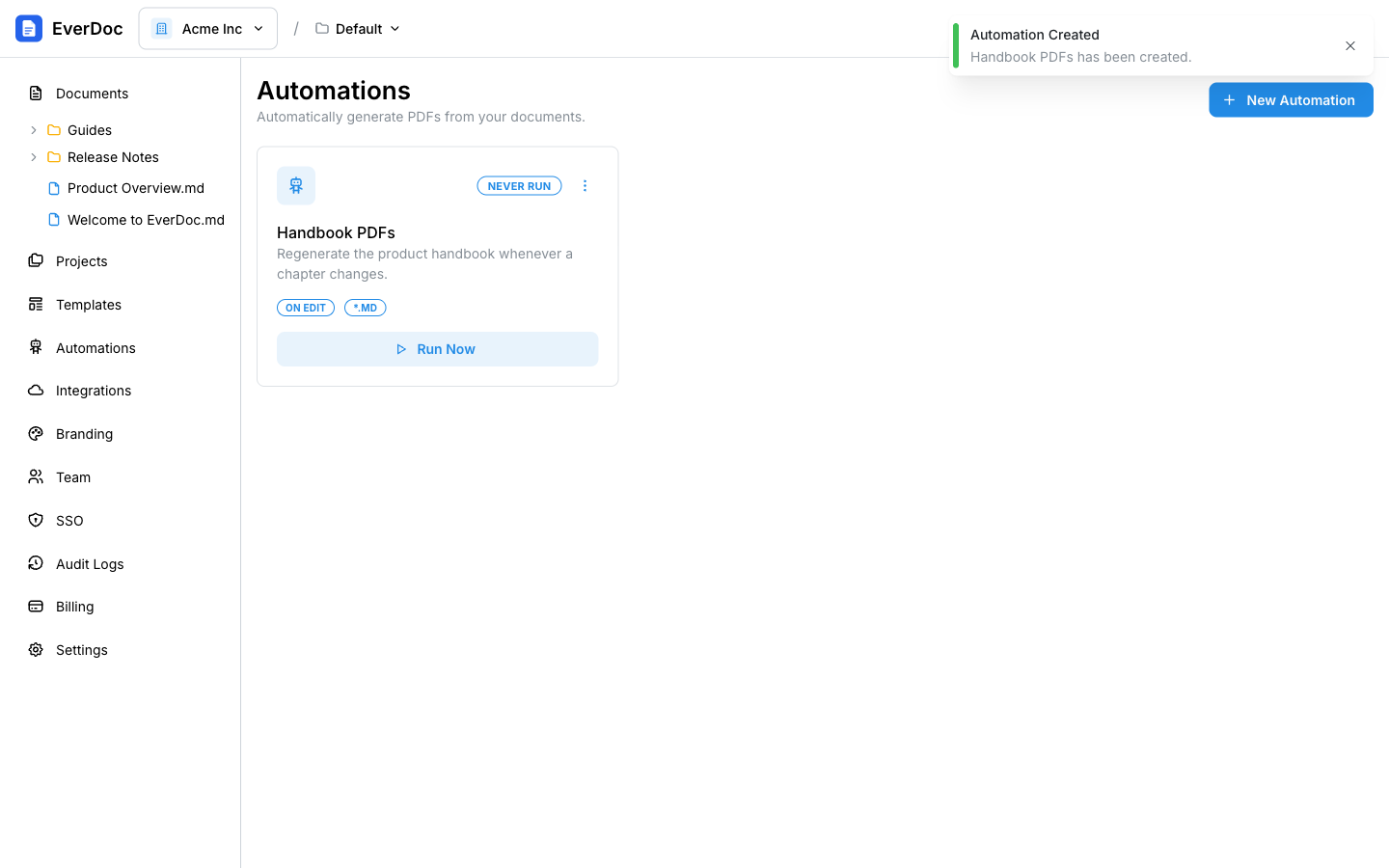
Create an automation
In the left sidebar, open Automations and click New Automation. A five-step wizard walks you through:
1. Basic Info
Name the automation and optionally describe what it does.
2. Source — what to watch
- Local Folder — a folder inside your EverDoc project.
- Google Drive (sync) — a folder in your connected Google Drive. Markdown files under it are imported automatically; updated files and generated PDFs are saved back to the same path. (Requires Google Drive connected in Settings → Integrations.)
- OneDrive (sync) — the same sync flow for a connected OneDrive folder.
A File Pattern (default *.md) filters which files the automation processes.
3. Output — where PDFs go
- For cloud sources (Google Drive or OneDrive), choose the Render folder — or keep "Same as import folder" to drop each PDF next to its
.mdsource. Only PDFs go to the render folder; your source Markdown stays put. - For local sources, pick an output folder in EverDoc, Google Drive, or OneDrive.
- Choose the Template to render with, and whether to Preserve folder structure in the output.
4. Trigger — when to run
- Manual Only — run it yourself with Run Now.
- On Document Edit — regenerate PDFs the moment a watched document is saved.
- Scheduled — every hour, daily at midnight, weekly on Monday, or monthly on the 1st.
5. Create
Review and click Create.
Run and monitor
Each automation card shows its status, trigger, and last run. From the card you can:
- Click Run Now to trigger it immediately.
- Open ⋮ → View History to see every run: files processed, files failed, duration, and error logs for anything that failed.
- Enable/Disable it temporarily, Edit it, or Delete it.
Plan limits
The number of automations is plan-dependent (1 on Free, 10 on Team, unlimited on Business and Enterprise) — see Plans, billing & usage.