Organize work with projects
Give each initiative its own documents, automations, and member roles.
Projects are workspaces inside your organization. Each project has its own documents, its own automations, and its own member roles — so your engineering runbooks, marketing collateral, and customer-facing guides can live side by side without getting in each other's way.
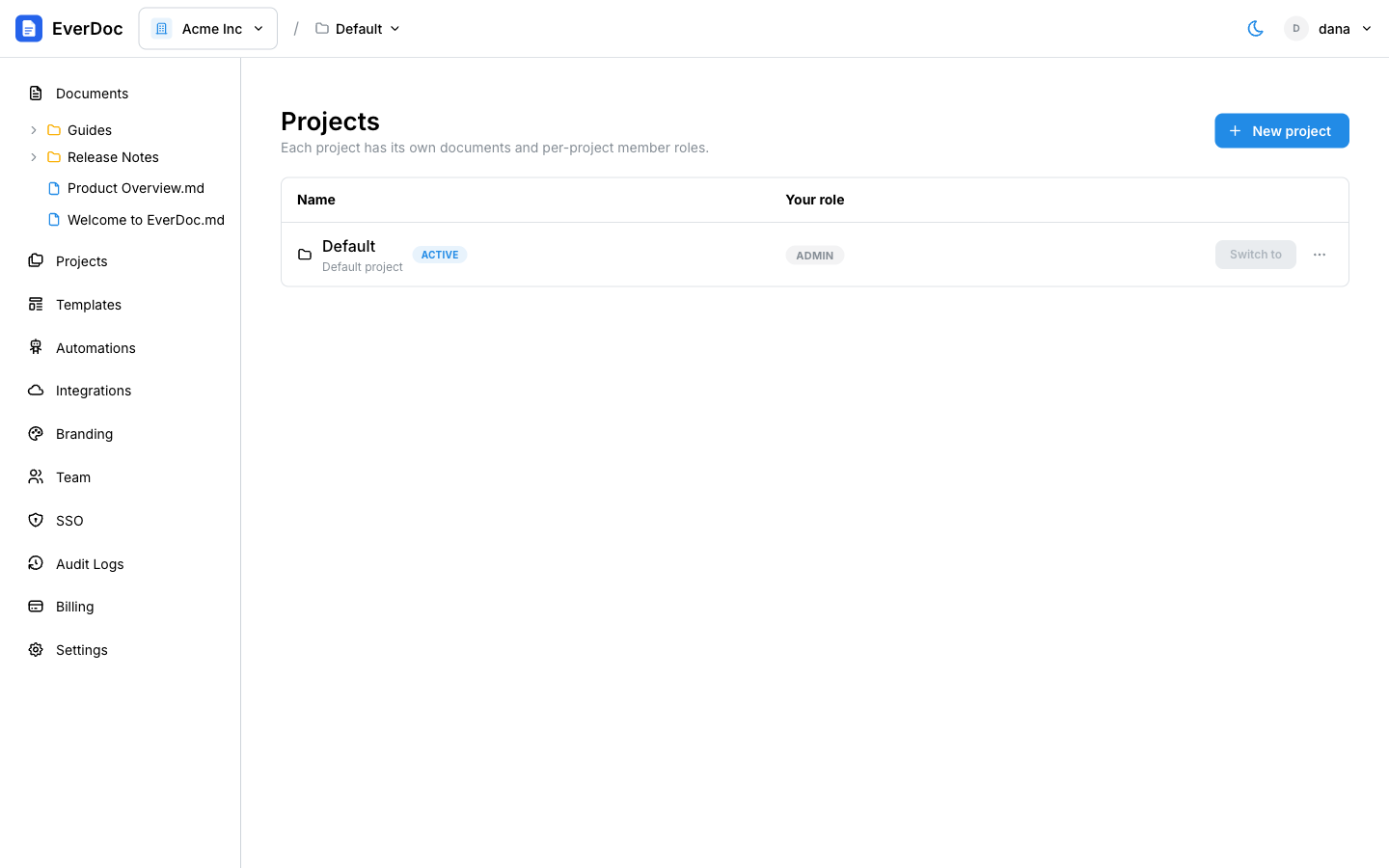
The Documents and Automations pages always show the currently active project. You switch projects from the project switcher in the top bar, next to the organization switcher.
Create a project
- In the left sidebar, open Projects.
- Click New project.
- Enter a Name (required) and an optional Description, then click Create.
Switch between projects
Two ways:
- Use the project switcher in the top bar (the active project shows an Active badge).
- On the Projects page, click Switch to on any project row.
Everything you create — documents, folders, automations — lands in the active project.
Manage project members and roles
Each project has its own member list with per-project roles, so a contractor can edit one project without seeing the rest.
- On the Projects page, open the ⋮ menu on a project and choose Members.
- To add someone, pick them under Add organization member, choose a Role, and click Add.
- To change a role, use the role dropdown next to the member.
Available roles: Owner, Admin, Editor, and Viewer.
Project members must already be members of your organization. To bring someone new into the organization first, see Manage your team.
Rename or delete a project
From the ⋮ menu on a project row you can Rename or Delete it. Deleting a project removes its documents and automations, so EverDoc asks you to confirm first.