Set up your branding
Your logo, colors, and fonts on the cover and every page of every PDF.
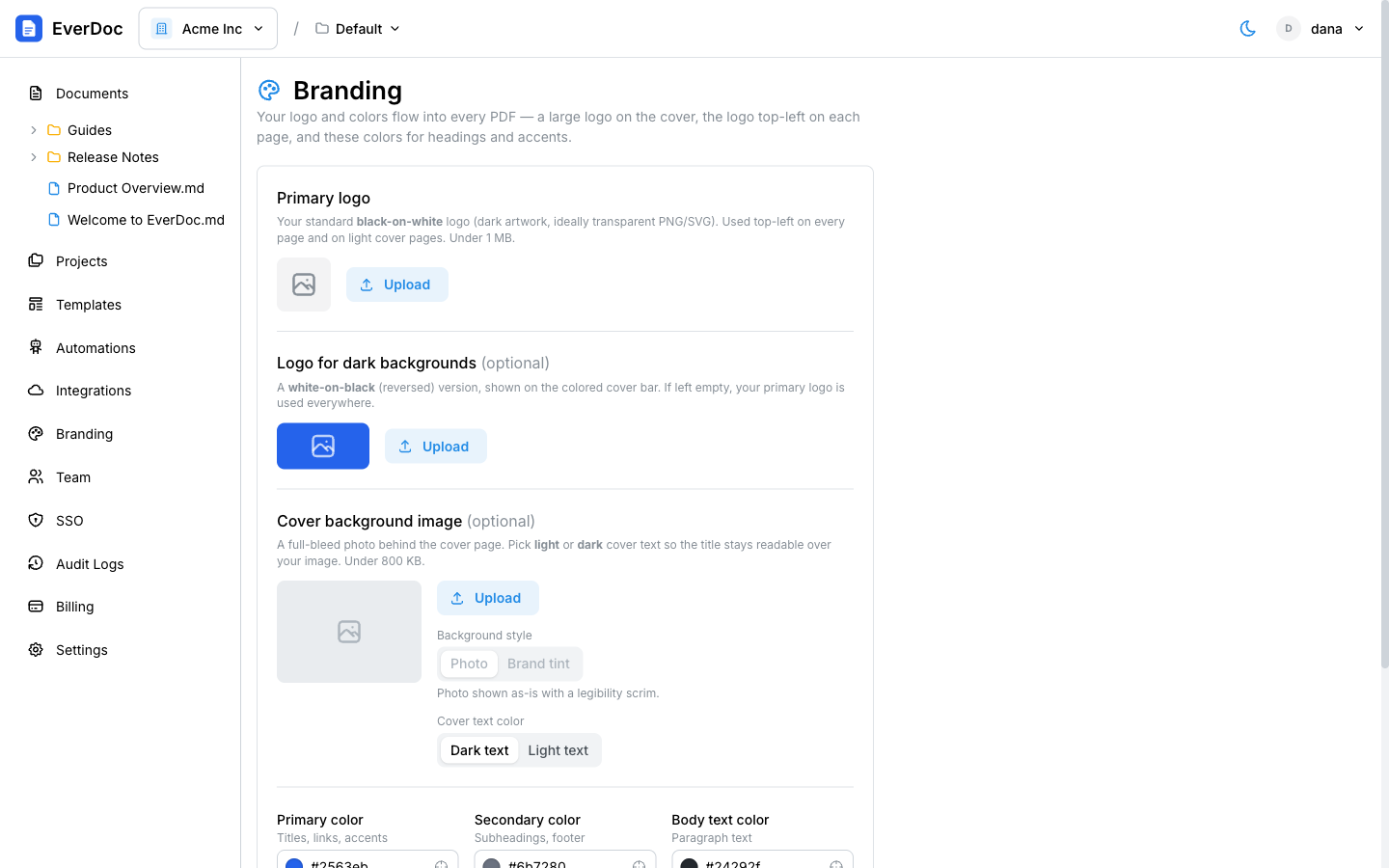
Branding lives in Settings → Branding (the Branding item in the left sidebar). Everything you set here flows into generated PDFs: a large logo on the cover, the logo top-left on each page, and your colors on headings and accents.
Logos
- Primary logo — your standard black-on-white logo, under 1 MB. Used on the cover and page headers.
- Logo for dark backgrounds (optional) — a white-on-black (reversed) version, shown on the colored cover bar.
Cover background
- Cover background image (optional) — a full-bleed photo behind the cover page (under 800 KB).
- Background style — render the image as a Photo or as a Brand tint (the image tinted with your primary color).
- Cover text color — choose Dark text or Light text so the cover title stays readable over your background.
Colors
- Primary color — titles, links, and accents.
- Secondary color — subheadings and the footer.
- Body text color — paragraph text.
Fonts
Pick a Headline font and a Body font: System default (Helvetica), Poppins, Lato, or Crimson Text (serif).
Click Save branding when you're done — the settings apply to your organization's default template, so the next PDF you generate is already on-brand.
Want different looks for different document types? Create additional templates, each with its own styling.