Write in the editor
A WYSIWYG Markdown editor with images, tables, diagrams, autosave, and version history.
Open any document from the Documents page to launch the editor. It's a WYSIWYG Markdown editor: you see formatted text as you type, and clean Markdown is stored underneath.
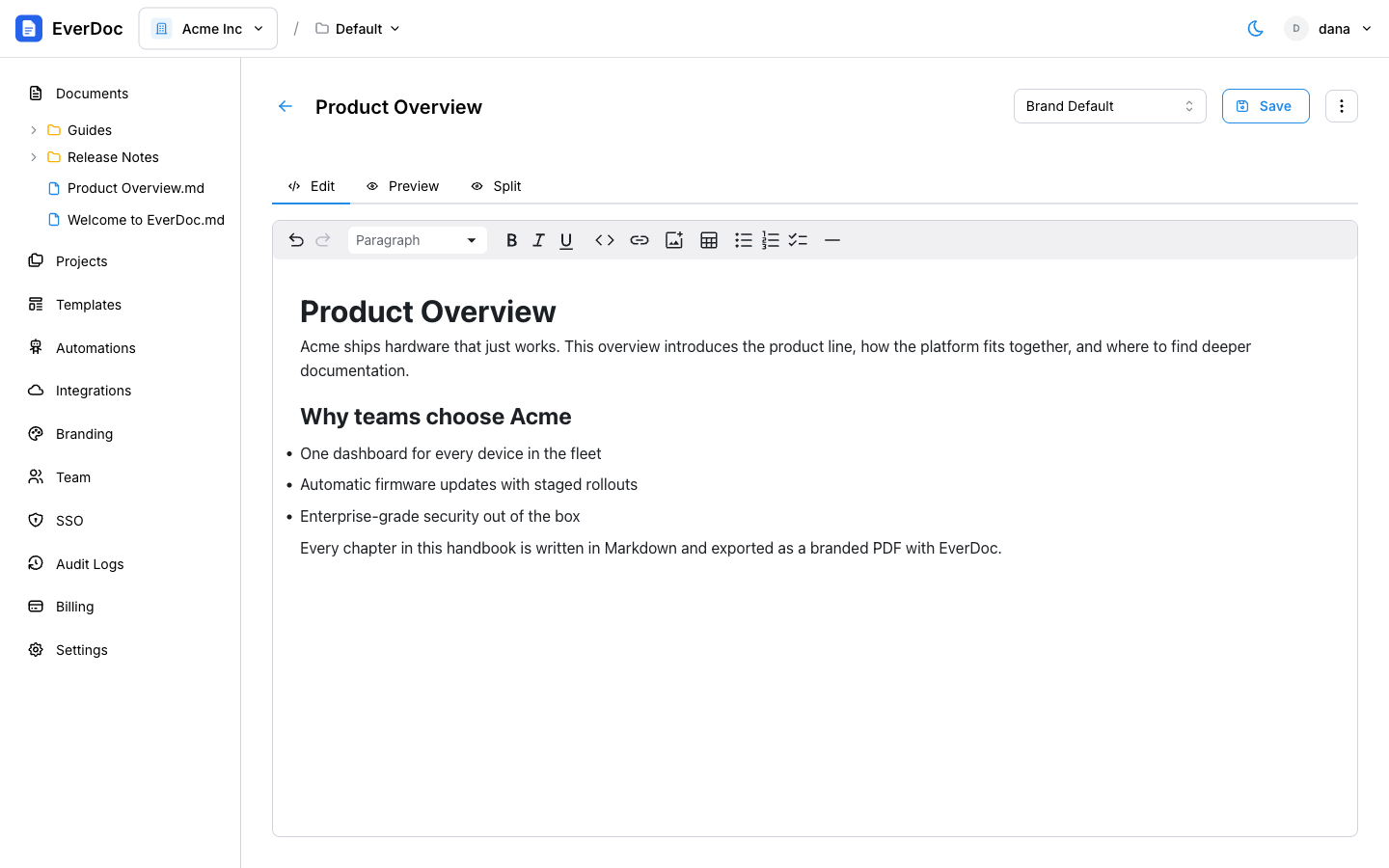
Editing modes
Tabs above the editor switch between three views:
- Edit — the rich editing surface.
- Preview — exactly how the rendered document looks.
- Split — edit and preview side by side.
Formatting
The toolbar covers everything you need: undo/redo, block type (headings, quotes), bold, italic, underline, inline code, links, images, tables, bullet and numbered lists, and thematic breaks.
A few things worth knowing:
- Images — click the image button to upload; images are stored with your document and appear in generated PDFs.
- Code blocks — pick from many languages for syntax highlighting.
- Diagrams — code blocks with the
mermaidlanguage render as diagrams in previews.
Saving and autosave
- The editor autosaves a couple of seconds after you stop typing; an "Unsaved changes" indicator shows pending edits.
- Press Cmd/Ctrl+S (or click Save) to save immediately.
- If someone else edited the document while you had it open, EverDoc detects the conflict and asks whether to Overwrite or Reload latest — no silent lost work.
Version history
Every content change creates a version. Open the ⋮ menu in the editor header and click Version history to open the history drawer, browse timestamped versions, and click Restore to roll back to any of them.
Rename a document
Click the document title at the top of the editor and type — the title is edited inline.