Google Drive & OneDrive
Connect your cloud storage to import documents and export finished PDFs.
EverDoc connects to the cloud storage your team already uses. With Google Drive connected you can import Google Docs (converted to Markdown with AI), pull in whole folders, and have automations write finished PDFs straight back to shared Drive folders.
Connect Google Drive
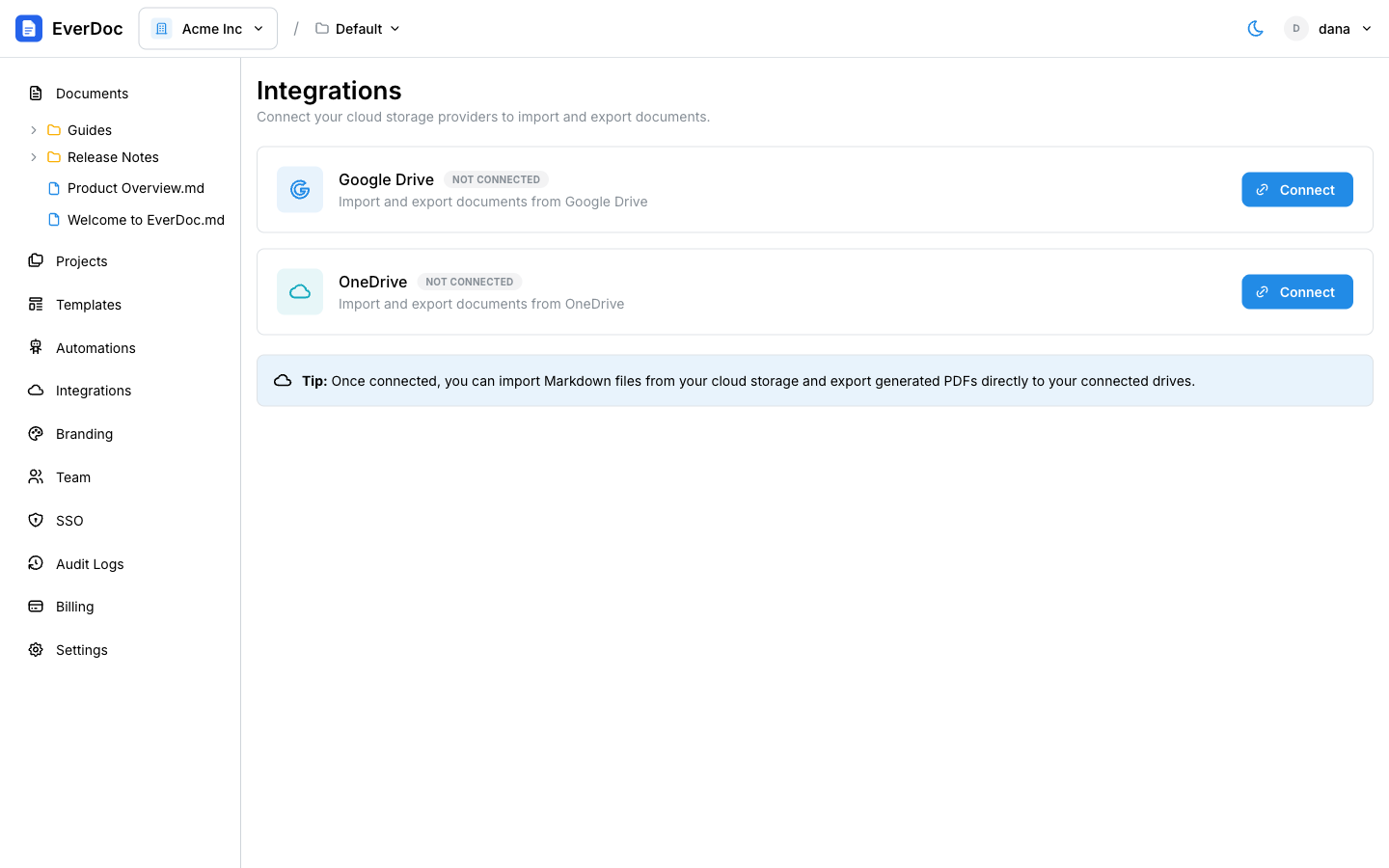
- In the left sidebar, open Integrations (Settings → Integrations).
- On the Google Drive card, click Connect.
- Approve access in Google's consent screen. EverDoc asks for Drive access so it can read the folders you choose and write generated PDFs back to them.
- You're returned to EverDoc with the card showing Connected.
Only organization owners and admins can manage integrations.
What you can do once connected
- Import a single Google Doc — on the Documents page, click New → Import from Google Docs, paste the document's link, and EverDoc converts it to Markdown with AI, cataloging any images.
- Import a whole Drive folder — New → Import Google Drive folder converts every Google Doc underneath it, imports
.mdfiles as-is, and mirrors the folder structure. The import runs in the background. - Sync with automations — an automation with Google Drive (sync) as its source imports Markdown files from a Drive folder automatically and saves generated PDFs back to the same path (or a dedicated render folder). See Automate PDF generation.
Connect OneDrive
OneDrive works the same way: on the Integrations page, click Connect on the OneDrive card and approve access with your Microsoft account. Once connected, the Import from OneDrive and Import OneDrive folder options on the Documents page import your files just like the Google Drive flows.
Disconnect
On the Integrations page, click Disconnect on the provider's card. Existing imported documents stay in EverDoc; only the connection is removed.