Manage your team
Invite members, assign roles, and control who can do what in your organization.
Team management lives in Settings → Team (the Team item in the left sidebar).
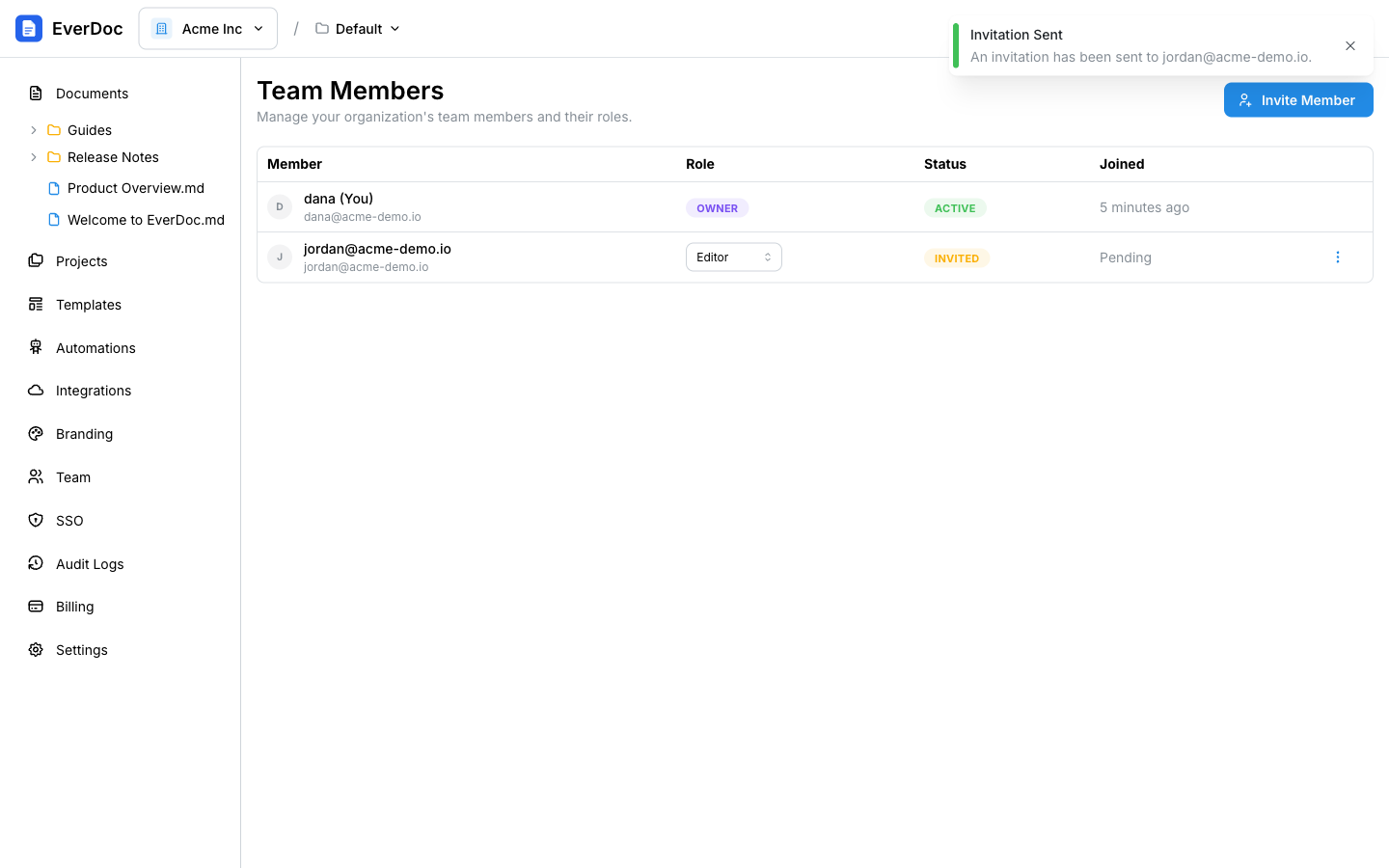
Invite a member
- Click Invite Member.
- Enter their Email Address.
- Choose a Role:
- Admin — full access except billing.
- Editor — can create and edit content.
- Viewer — read-only access.
- Click Send Invitation.
The member appears in the table with an invited status until they accept. You can Revoke invite from the row's menu while it's pending.
Change roles and remove members
- Change a member's role inline with the role dropdown on their row (the organization owner's role can't be changed, and you can't edit your own).
- Remove a member from the row's ⋮ menu.
Roles vs. project roles
Organization roles control overall access. Individual projects additionally have their own member lists and per-project roles (Owner, Admin, Editor, Viewer), so you can scope external collaborators to a single project.
Seats and plans
- The Free plan includes up to 2 members; paid plans have unlimited members with per-seat pricing.
- On paid plans, your subscription quantity syncs automatically as members join and leave.
- Document and PDF quotas pool across seats — details in Plans, billing & usage.