Getting started
Create your account, set up your organization, and generate your first PDF in about five minutes.
EverDoc turns Markdown and rich-text documents into beautiful, branded PDFs. This guide walks you from a blank account to your first generated PDF.
1. Create your account
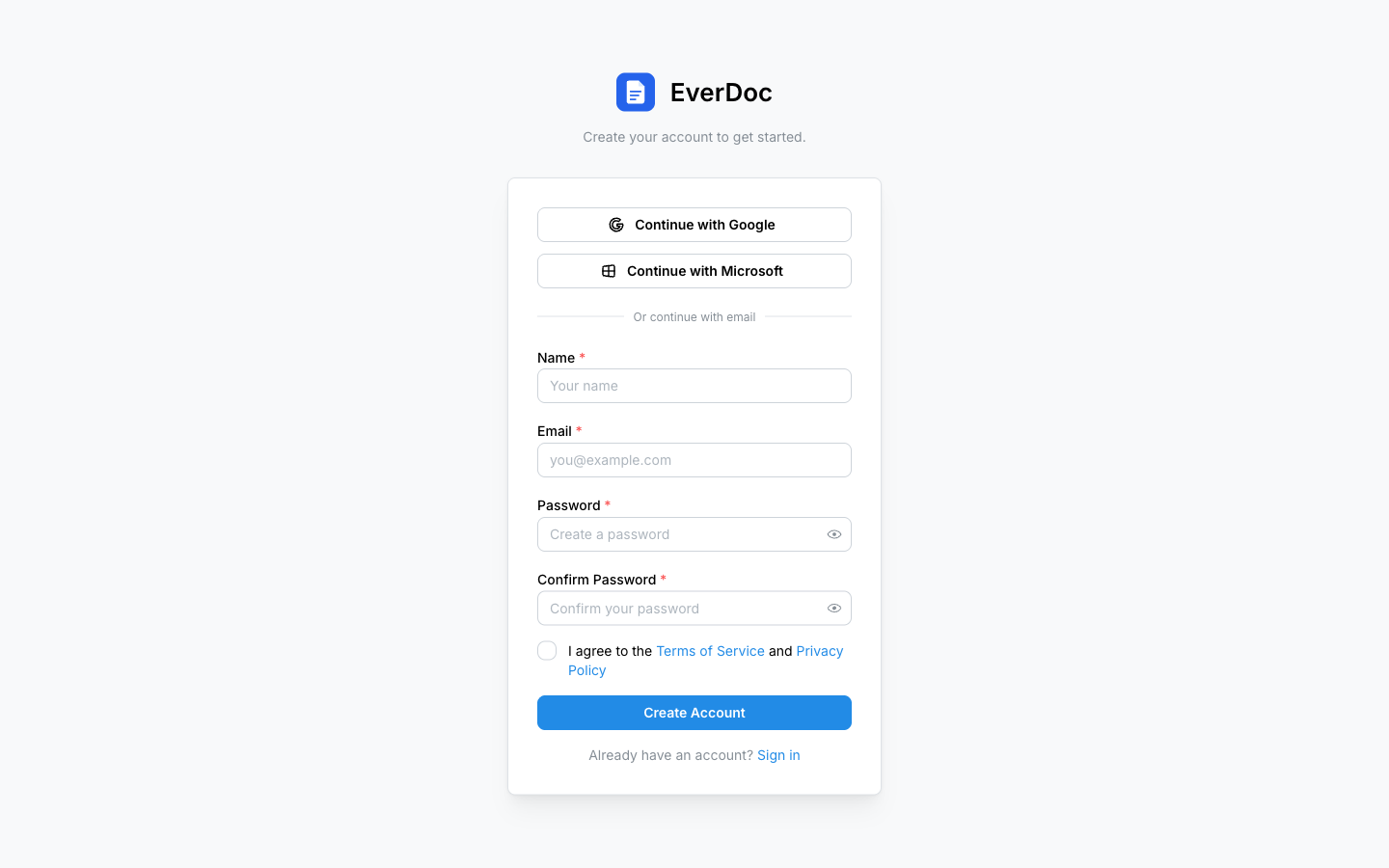
Go to everdoc.io/auth/signup. You can sign up three ways:
- Continue with Google — one click with your Google account.
- Continue with Microsoft — one click with your Microsoft account.
- Or continue with email — enter your Name, Email, and a Password (at least 8 characters), accept the Terms of Service, and click Create Account.
2. Set up your organization
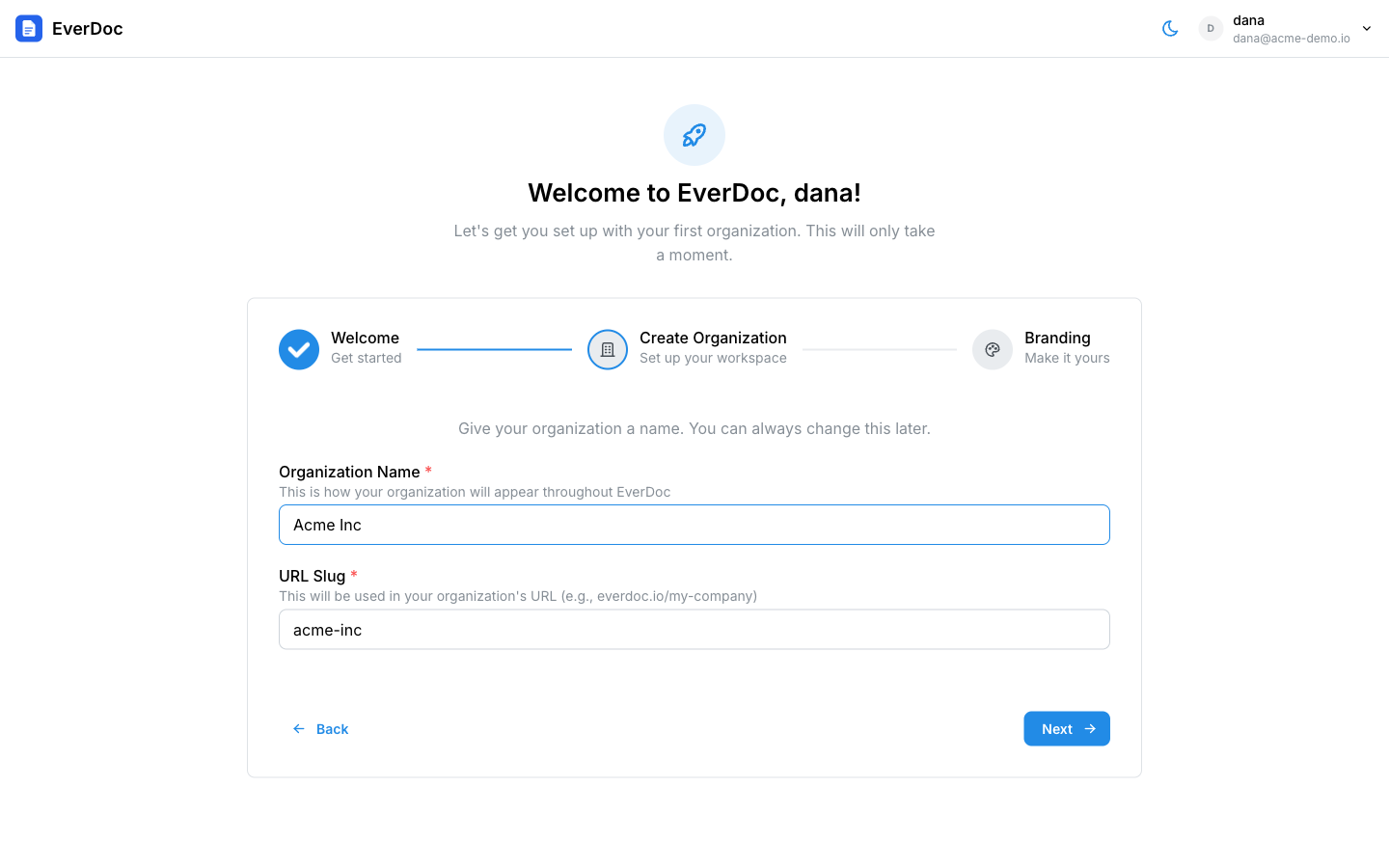
The first time you sign in, EverDoc launches a short onboarding wizard:
- Welcome — a quick overview of what you can do. Click Get Started.
- Create Organization — enter your Organization Name (for example,
My Company). EverDoc auto-generates a URL Slug from the name; this becomes your organization's URL (for example,everdoc.io/my-company) and cannot be changed later, so pick something you're happy with. Click Next. - Branding — optionally upload your logo and pick a Primary color and Secondary color. These flow into every PDF you generate. You can skip this and set it up later in Settings → Branding.
- Click Create Organization, and you'll land in your new workspace.
Everything in EverDoc lives inside an organization. You can belong to several organizations and switch between them from the organization switcher in the top bar, or from the Organizations page at
/dashboard.
3. Create your first document
- In the left sidebar, open Documents.
- Click New → New Document.
- Give it a name (the
.mdextension is added automatically) and click Create & Edit. - The editor opens with your document title as a heading. Write a few paragraphs — the editor supports rich-text formatting and Markdown alike.
4. Generate your first PDF
In the editor's top-right corner:
- Make sure a template is selected in the template dropdown (your organization's default template is preselected).
- Open the ⋮ menu next to Save and click Generate PDF.
EverDoc renders your document through the template — cover page, headers, footers, and page numbers included — and downloads the finished PDF.
Where to go next
- Create and organize documents — folders, import, and bulk actions.
- Write in the editor — rich text, Markdown, images, tables, and version history.
- Design PDF templates — control exactly how your PDFs look.
- Set up your branding — logo, colors, and fonts on every page.
- Sync with Google Drive — keep documents flowing both ways.