Design PDF templates
Control page size, covers, headers, footers, colors, and typography — or start from the gallery.
Templates define how your PDFs look. Every document is rendered through one, and you can keep several — a formal template for customer-facing documents, a lean one for internal notes.
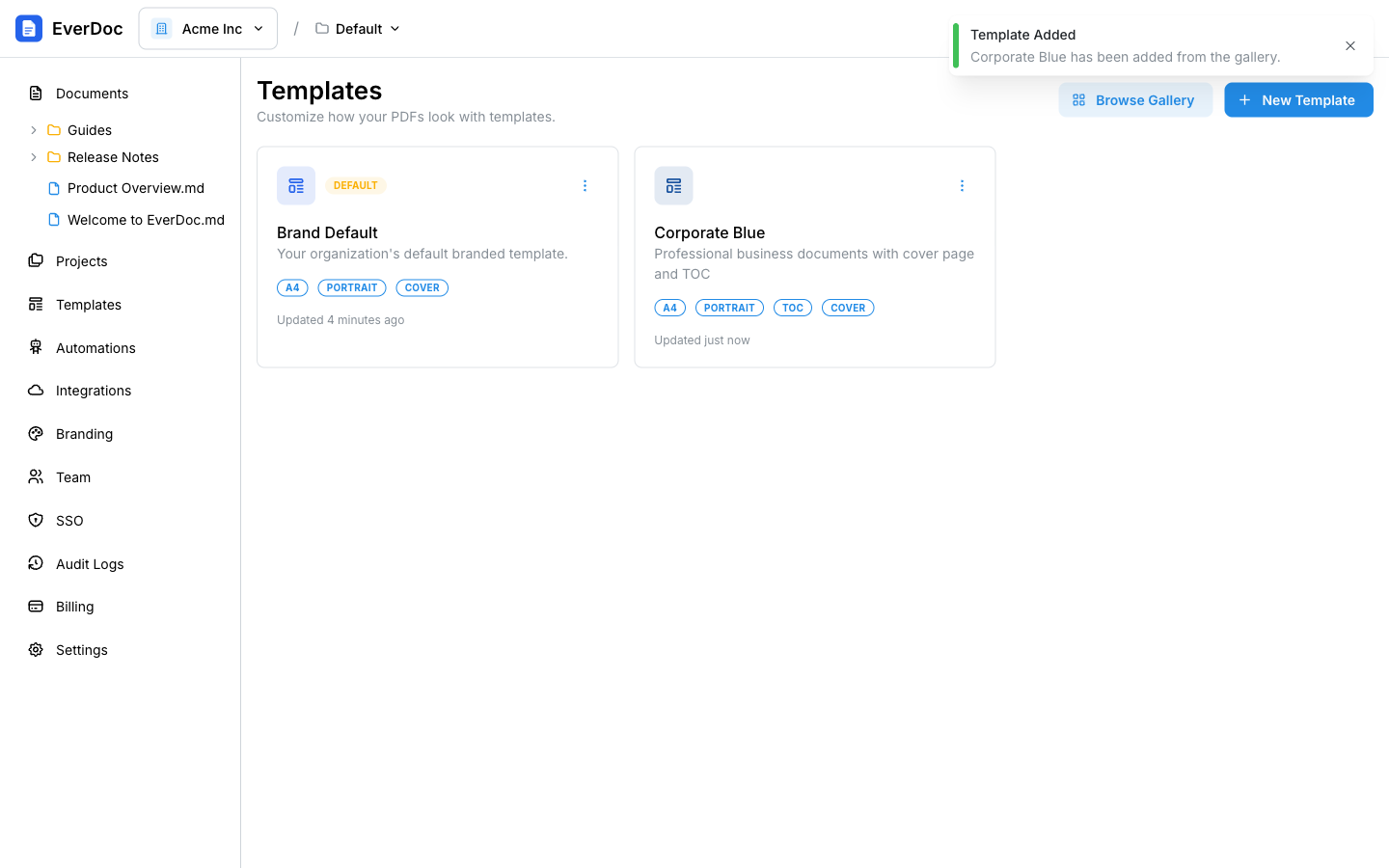
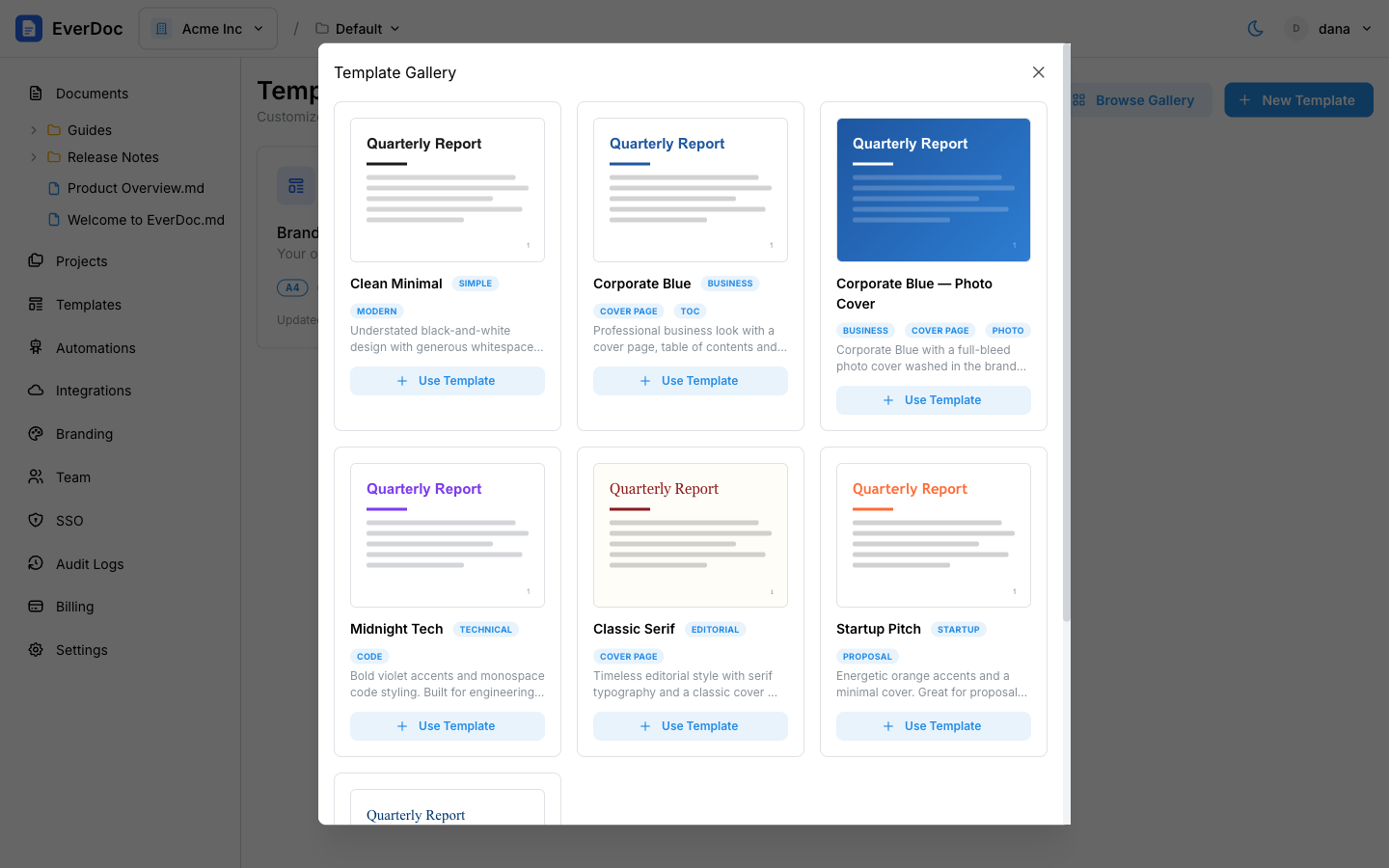
Start from the gallery
The fastest way to a great-looking template:
- In the left sidebar, open Templates.
- Click Browse Gallery.
- Pick a preset — Clean Minimal, Corporate Blue, Midnight Tech, Classic Serif, Startup Pitch, Academic Paper, and more — and click Use Template.
The preset is added to your templates, ready to use as-is or to customize.
Create a template from scratch
Click New Template to open the template designer. Settings are grouped in tabs:
- General — name and description.
- Styling — Primary Color, Secondary Color, Font Family (Arial, Georgia, Helvetica, Times New Roman, Verdana), and Custom CSS for full control.
- Page — Page Size (A4, Letter, Legal), Orientation (Portrait, Landscape), margins in millimeters, and an optional Table of Contents with configurable depth.
- Cover Page — toggle Include Cover Page, choose a style (Modern, Classic, Minimal, or Corporate), and switch individual elements on or off: document title, author, date, and logo.
- Header & Footer — a header with your logo and company name (positioned left, center, or right), and a footer with page numbers and optional confidential text.
Click Preview at any point to render a live sample PDF in a modal, and Create when you're happy.
Manage templates
From a template card's ⋮ menu:
- Edit — reopen the designer.
- Duplicate — creates a copy to iterate on safely.
- Set as Default — the default template is what's preselected in the editor and used by Generate PDF on the Documents page.
- Delete — remove it.
Your organization's logo, colors, and fonts from Settings → Branding flow into your default template automatically — see Set up your branding.